Open in
Player ratings
FMRTE rates how well a player suits each role and position. The overall Actual Rating and Potential Rating also take the player's ability into account. Every rating runs from 0 to 100 and has a current and a potential value.
Where ratings appear
| Where | What it shows |
|---|---|
| Scout Information → General Rating | Current and potential rating for each general position, such as Full Back or Winger. |
| Scout Information → Positional Rating | Current and potential rating for each of the 15 positions on the pitch. |
| Scout Information → Role Ratings | Pick a position on the pitch to see every role there, in and out of possession, now and at the player's potential. |
| Player header, Rating cur / pot | The player's Actual and Potential Rating: best role rating combined with ability. |
| Actual Rating and Potential Rating columns | The same two ratings in player lists. |
| Best Role and Best Role Rating columns | The player's best role and its plain role rating, without ability. |
Add any of these columns with Add/Remove columns.
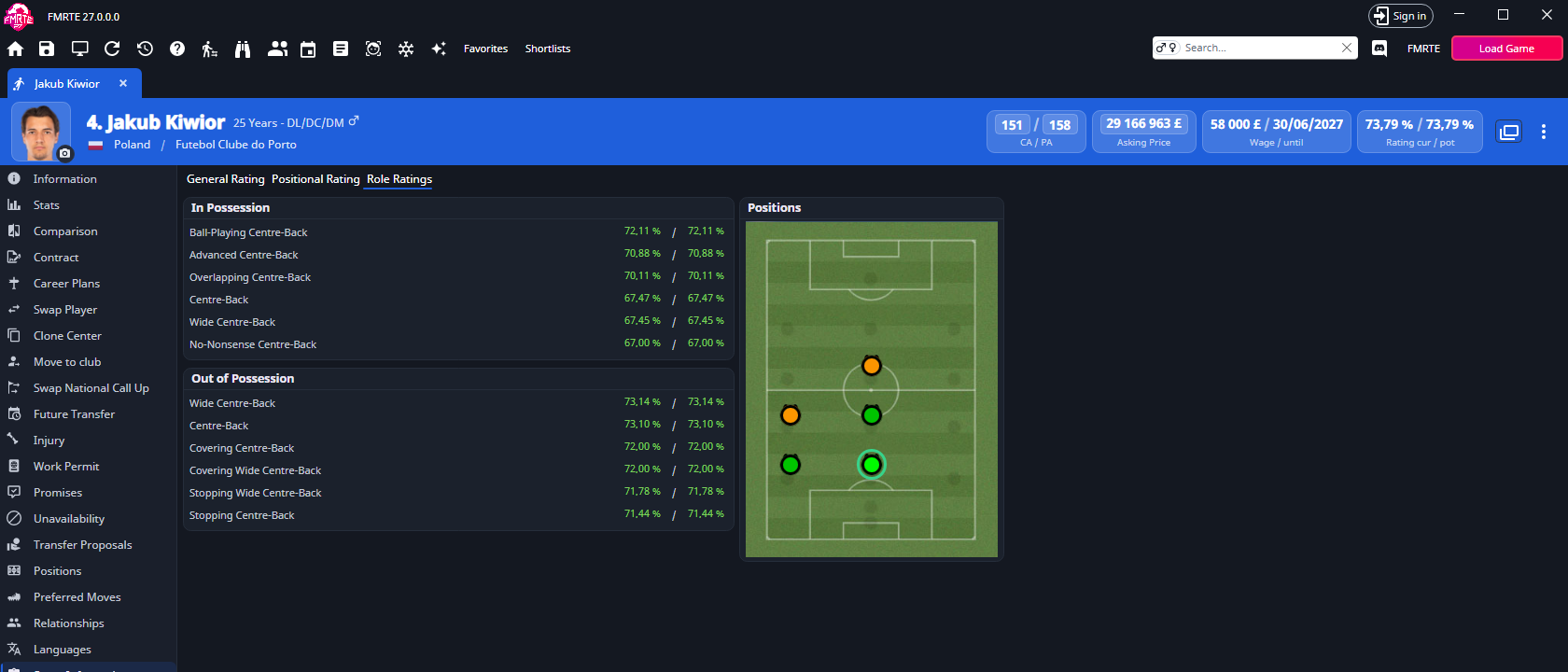
Role ratings
A role rating shows how well a player suits a role at a position.
- A position's rating is the player's best in-possession role at that position.
- A general position takes the better of its two sides.
- The Best Role is the player's highest-rated in-possession role. Best Role Rating is that role rating.
Actual and Potential Rating
A role rating measures how well a player fits a role, not how good the player is. The Actual Rating also takes current ability (CA) into account. By default, the best role rating and CA count equally. To make CA count more or less, change CA in ratings on the Role Weights tab.
The Potential Rating does the same with the player's projected attributes and ability. See Potential rating.
Positional, general and role ratings on Scout Information stay plain role ratings.
"Lower is better" attributes
Some roles are better with a low value in an attribute. When you highlight a role on the player's Information page with the role selector, these attributes get a third legend entry: Lower is better.
Role presets and the Wonderkid generator leave these attributes alone.
Potential rating
FMRTE projects the attributes the player is likely to reach as they develop and rates them. The projection assumes the player plays and trains normally. The Ability Weights affect it.
A potential rating is never below the current rating. When PA is not above CA, the potential ratings equal the current ones.
Ability Weights
The Ability Weights tab of Settings → Tools → Ratings sets how much each attribute counts towards ability at each position.
The weights change two things:
- Recommended CA (RCA) on the player's Information page.
- Potential: which attributes grow as the player gains ability, and so the potential ratings.
They do not change the current role ratings.
Change the weights
- Open Settings, select Ratings under Tools, then the Ability Weights tab.
- Choose a Position.
- Change the weight of any attribute.
- Select Save.
FMRTE keeps your weights in abilityWeights.json, in the Ratings folder of its user data.
Reset the weights
- Reset to default (selected position) restores the shipped weights for the position you chose.
- Reset all to default restores every position.
Select Save Changes after a reset.
Diagnostics → Reset → Restore defaults does not reset the Ratings settings. Use the buttons above.
If abilityWeights.json is not valid, FMRTE replaces it with the shipped file and keeps yours beside it as abilityWeights.json.bak (then .2.bak, .3.bak, …). A file from an earlier version named rca.json is read once and saved as abilityWeights.json. The old file stays in place.
In a narrow window, the attribute columns on this tab drop to two instead of running off the edge.
Role Weights
The Role Weights tab of Settings → Tools → Ratings sets which attributes count in each role, and how much. It changes the role ratings, the Actual Rating and the Potential Rating. The defaults are Football Manager's own role lists.
A role rating averages each group of attributes, then counts each group by its weight. An attribute in no group does not count.
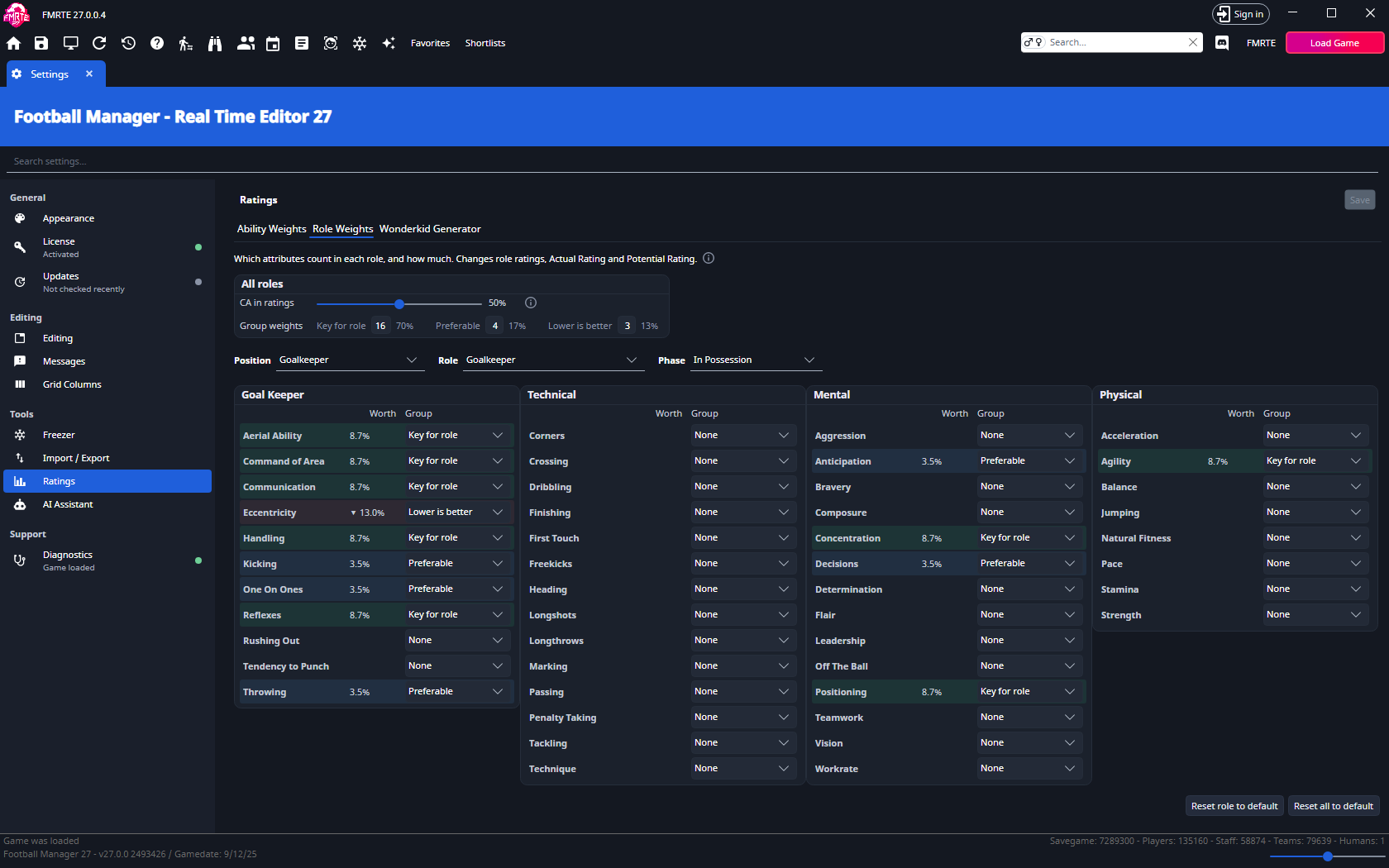
Settings for all roles
| Setting | What it does |
|---|---|
| CA in ratings | How much CA counts in the Actual Rating and Potential Rating, from 0% to 100%. The rest comes from the player's best role rating. Default: 50%. |
| Group weights | The weight of Key for role, Preferable and Lower is better attributes. The figure beside each weight shows the share of the role rating that group comes to. |
Change a role
- Open Settings, select Ratings under Tools, then the Role Weights tab.
- Choose a Position, a Role and a Phase (in or out of possession).
- For any attribute, choose a group: None, Key for role, Preferable or Lower is better.
- Select Save.
Each attribute shows its group in the same tint as the player's Information page. Worth shows how much of the role rating the attribute is worth. A 20 earns all of it and a 10 about half. A down arrow marks a Lower is better attribute, where a 1 earns all of it.
A role is changed at every position that offers it, as in the game.
Reset the role weights
- Reset role to default restores the shipped attribute groups of the selected role, in both phases and at every position.
- Reset all to default restores every role and the settings for all roles.
Select Save Changes after a reset.
FMRTE keeps these settings in rolesAndDuties.json, in the Ratings folder of its user data. Diagnostics → Reset → Restore defaults does not reset them.