Open in
Installing newgen and staff facepacks
Facepack Installer links images to people in your savegame through a config.xml file. It is free, but you must supply the facepack; it does not generate images.
Before installing
Load your savegame, then download and extract a compatible facepack. Choose its image folder, not the archive.
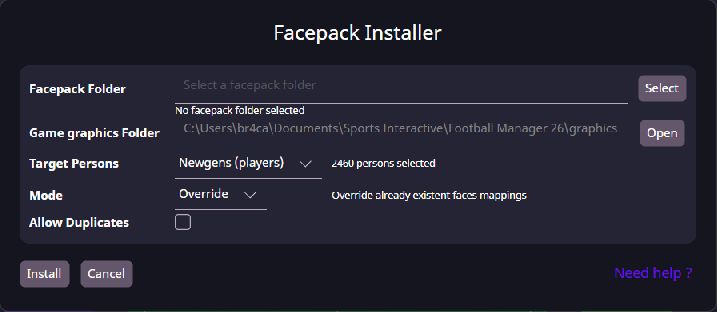
Install a small test set
- Open Facepack Installer from the toolbar.
- Choose Facepack Folder and check the detected pack type and face count. If it says No facepack found, check the extracted folder.
- Check Game graphics Folder. Use Open to inspect it.
- Select Copy to game graphics folder, or copy the finished pack and
config.xmlthere yourself. - Choose Target Persons. Use Custom → Customize for a few people, or a group such as newgens, players or staff.
- Choose the mode below and whether to Allow Duplicates.
- Select Install and check the installed, preserved and missing-person totals.
- Confirm the images and
config.xmlare in the graphics folder.
| Mode | Effect |
|---|---|
| Preserve | Keep existing mappings |
| Override but preserve missing persons | Replace selected mappings; keep those outside the selection |
| Override | Replace existing mappings in scope |
Allow Duplicates lets more than one person use the same image. Leave it off if every person should have a different face.
Make FM26 load the new mapping
Reopen the same person's profile in Football Manager to check the face. If your game offers graphics-cache or skin-reload controls, use them. Otherwise, restarting the game is a diagnostic step; a universal refresh sequence is not yet confirmed.
If the face remains missing, check the files below before reinstalling with Override.
Add more faces later
Use Preserve to keep current faces, or Override but preserve missing persons to replace selected ones. Compare installed, preserved and missing totals after each update.
Game graphics Folder is blank, missing or wrong
The destination comes from the running game's user-data folder plus graphics. It is read-only. Facepack Folder is the source pack, not the destination.
- Load the correct savegame in both apps and reopen the installer.
- Use Open to check the destination, especially with redirected Documents or a custom user-data location.
- Create a
graphicssubfolder there if it is missing. - Keep the extracted images and completed
config.xmltogether inside it.
If the destination is blank or points to another installation, report both paths. Changing the install mode does not fix a wrong folder.
Italmed, SAMed or a dictionary-key error
Update FMRTE and check that the pack is supported and fully extracted. If the error remains, report its exact text, pack name, detection result and install mode. Deleting config.xml is not a general fix.
Installation succeeded, but the face is still missing
Check one person from start to finish:
| Check | What must match |
|---|---|
| Person | The unique ID in the loaded savegame |
| Mapping | That ID in config.xml |
| Image | The mapped file exists relative to the config file |
| Destination | The pack is inside this game's graphics folder |
| Display | Football Manager has refreshed the graphics |
Installation totals describe the files processed, not whether Football Manager displayed them.