Open in
Settings and keyboard shortcuts
Open FMRTE → Settings. After changing a preference, select Save Changes while the Settings tab is active.
Search and tab behavior
Under General → Appearance:
| Setting | Effect |
|---|---|
| Open a new tab for each search | New result tab when on; reuse the latest one when off |
| Double-clicking a search result automatically switches to the new tab | Show the opened record immediately when on |
| Reload Screen Info when Switcing tabs (slower) | Request a reload when switching pages; exact scope still needs confirmation |
| Reload transfers when opening future transfers | Read fresh transfer data when opening that view |
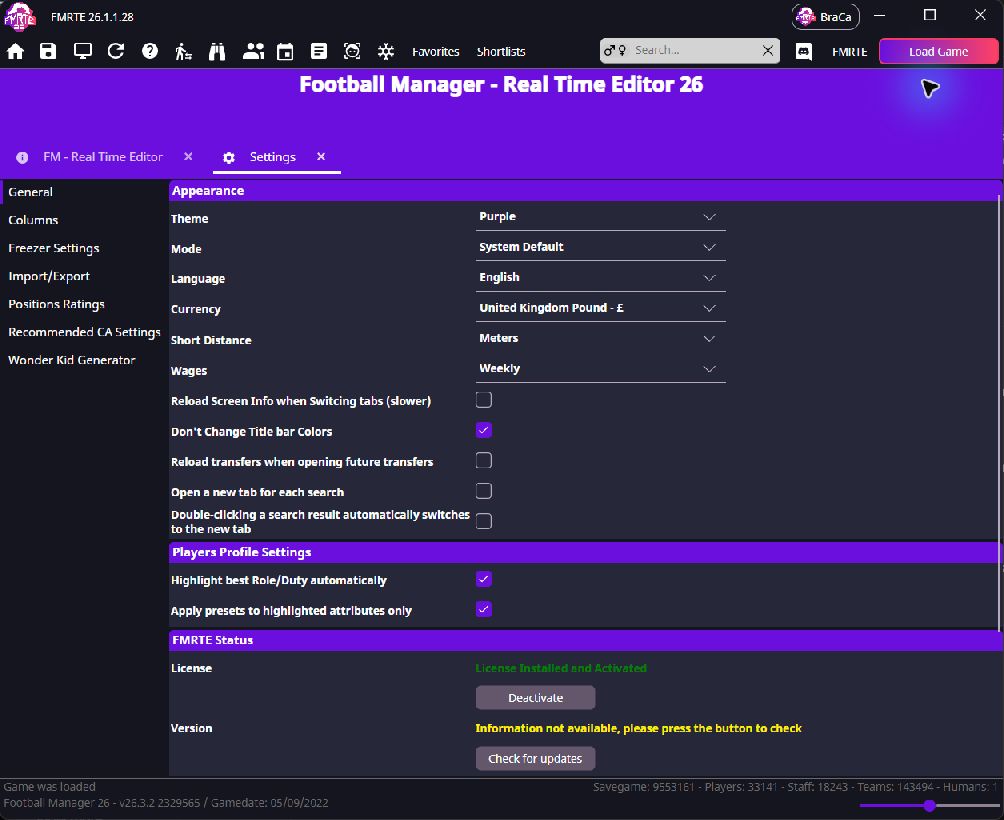
For browsing many players, turn off automatic tab switching so you can stay in the results list.
Settings won't save
Keep Settings selected, choose Save Changes, then reopen the page. Saving after switching to a player saves that player's page instead.
Choose columns and their order
Choose which details appear in FMRTE's lists, including search results, club and national-team lists, the Freezer, retirements and future transfers. Each list has its own column layout.
- Open FMRTE → Settings → Columns.
- Choose Page Type and the list you want to change, such as Search results → Players.
- Tick a field in Available Items to add it.
- Use the arrows in Displayed Columns and Order to move a column.
- Clear a column's checkbox or select it and use − to remove it.
- Select Save Changes while Settings is active.
- Reopen the list to see the columns.
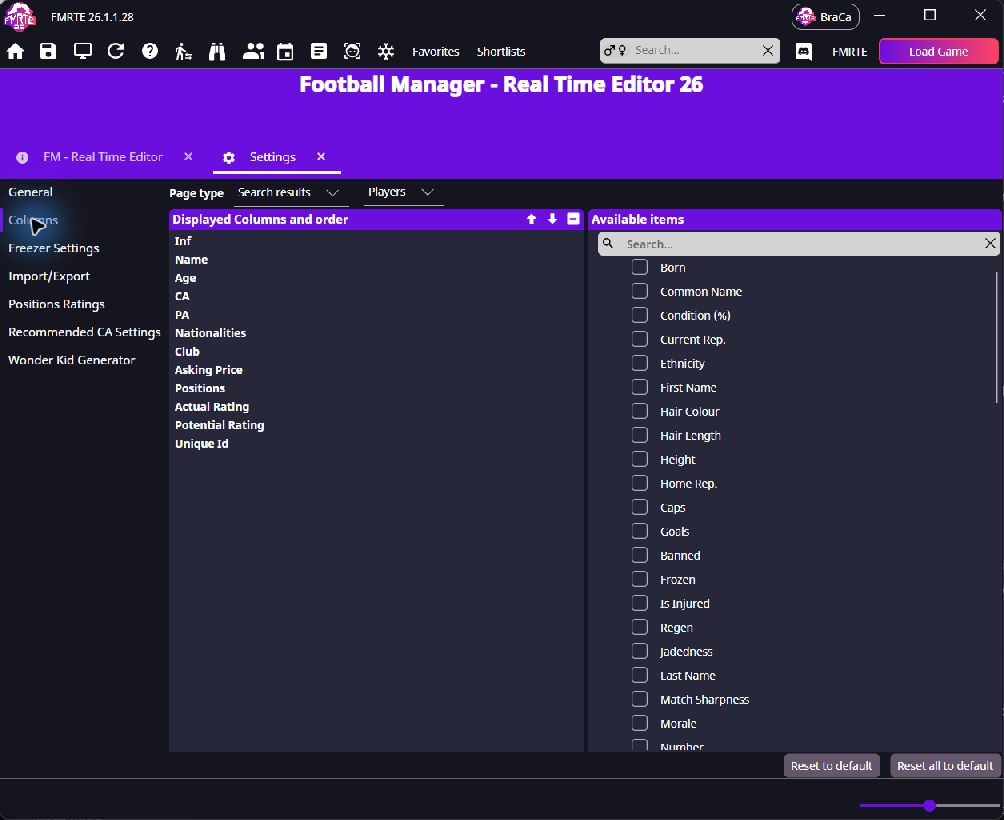
These settings change FMRTE's lists. They do not change Football Manager's screens or your saved Advanced Search criteria.
Reset a column layout
Reset to default restores the selected layout. Reset all to default restores every layout.
Columns disappear, sorting is wrong, or the list jumps
Check that you saved the settings for the list you are using. If the problem continues, report the affected list, column, sort direction and the action that caused it. Which sort, width and scroll settings persist still needs verification.
Display preferences and units
| Setting | Controls |
|---|---|
| Theme / Mode | Colours and light, dark or system appearance |
| Language | Interface labels |
| Currency | Display currency; underlying finances stay the same |
| Short Distance | Measurement units |
| Wages | Weekly, monthly or annual display |
| Don't Change Title bar Colors | A consistent title-bar colour |
Player profile settings
Under Players Profile Settings:
| Setting | Effect |
|---|---|
| Highlight best Role/Duty automatically | Selects the player's best-rated role and duty when you open Information. |
| Apply presets to highlighted attributes only | Limits compatible attribute presets and group + / − adjustments to the highlighted attributes. |

Choose the highlights with the role selector on Information. Freezer, Import/Export and Wonder Kid Generator have their own settings pages.
Keyboard shortcuts
| Action | Windows/Linux | macOS |
|---|---|---|
| Save current tab | Ctrl+S | Cmd+S |
| Reload current page | Ctrl+R | Cmd+R |
| Advanced Search | Ctrl+F | Cmd+F |
| Mass Edit | Ctrl+M | Cmd+M |
| Close current tab | Ctrl+W | Cmd+W |
| Close other tabs | Ctrl+Alt+W | Cmd+Option+W |
| Close tabs to the right | Ctrl+Shift+Alt+W | Cmd+Shift+Option+W |
Save Changes saves the current FMRTE tab. Save in Football Manager to keep those edits in the save file.
Advanced
- Use the stable Release Channel for everyday editing.
- Enable Debug Mode when support requests logs.
- Enable Experimental Features only for a tool that needs it.
- Open Log folder → Open opens FMRTE's user-data folder, including Presets.
- Restore Default Settings resets preferences, not game edits.