Open in
Licensing and activation
Browsing and searching are free. Saving edits requires an activated license.
Account, key and activation are different
| Item | Meaning |
|---|---|
| Account | Your sign-in for fmrte.com and the app |
| License key | Your product entitlement |
| Activation | Using that entitlement on a computer |
| Single license | A lifetime license for one product |
| Subscription | Product access during the subscription period |
Check Client Area → Licenses for your entitlement and available activations. Keep your license key private.
Find your license
Sign in at fmrte.com and open Client Area → Licenses. Licenses appear after payment is confirmed. If a confirmed purchase is missing, contact support before buying again.
Check the current state
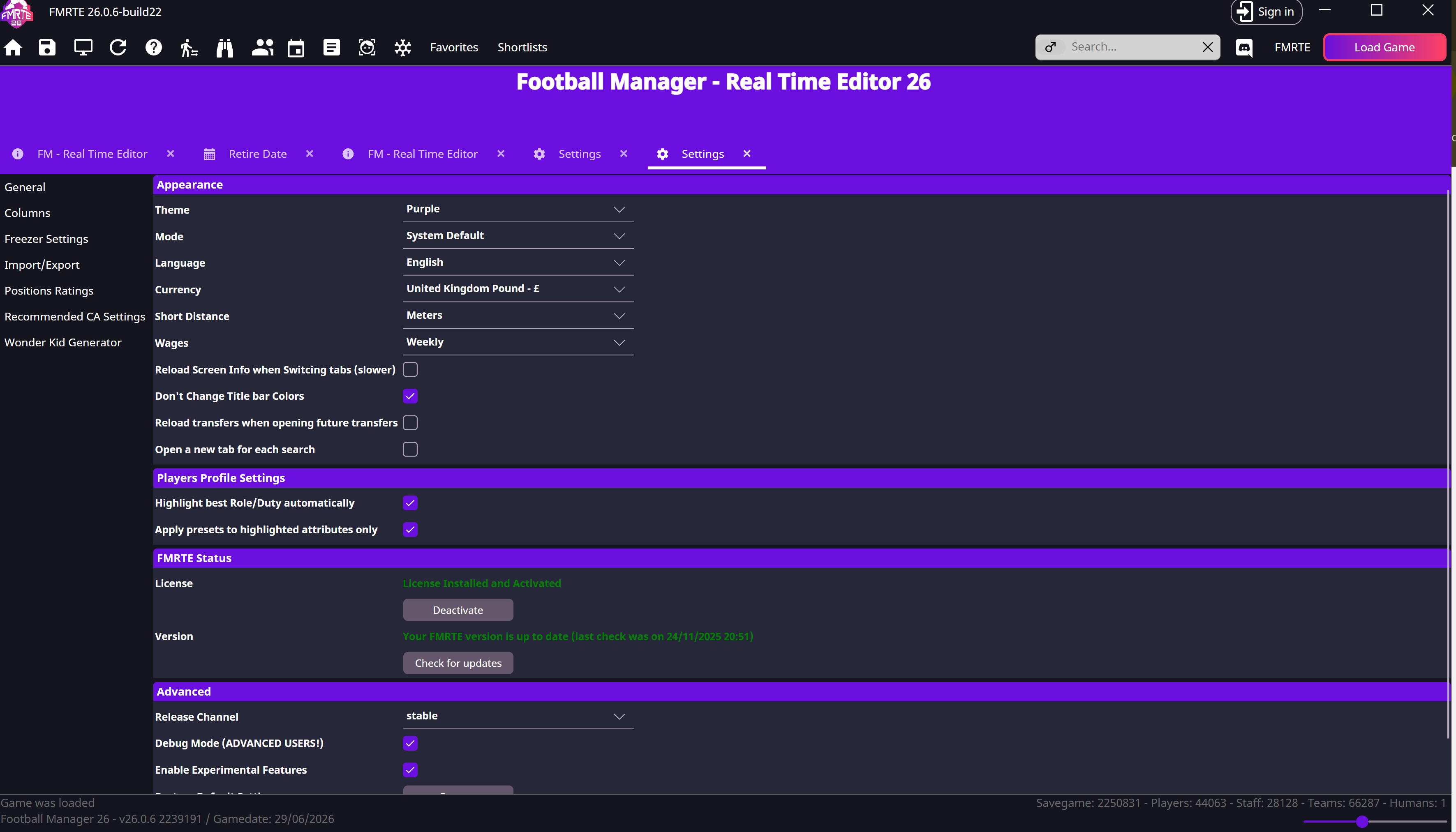
Open Settings → General → Status. Look for License Installed and Activated, or choose Activate if it says Not Licensed.
Activate with your signed-in account
- Select Sign in in the toolbar and sign in to your account.
- The app tries to activate an available license. If the profile menu still shows Activate, select it.
- Check the license status in Settings.
For No License Available, check your Client Area or use the key-based wizard below.
Activate online with a key
- Open Settings → General → Status → Activate.
- Choose I want to activate it online and select Next >.
- Enter your key and select Next >.
- Wait for License installed. Activation complete., then close the wizard.
Activate a computer that is offline
You'll need another device with internet access to generate the license file.
1. Generate activation data on the FMRTE computer
In the activation wizard, select I want to request a license file (offline activation), enter your key, and choose Copy to clipboard when the request appears. Transfer that complete text to the connected device.
2. Generate the file online
Open Offline activation, paste the request and follow Next / Generate File. Transfer the downloaded .bin file to the FMRTE computer.
3. Install the license file
In the wizard, choose I have a license file I want to install. Select Browse..., choose the .bin file and continue until activation completes. Check the license status in Settings.
Fix a specific activation error
Maximum activations: -201
Open Client Area → Licenses, select the license, then Request more Activations. Extra activations are subject to approval.
The offline license file is too old
Start a fresh offline request and generate a new file. An expired activation file does not necessarily mean your license expired.
Online activation cannot reach the server
Try offline activation. If that also fails, send support the exact error without your key or activation data.
Get account or activation help
Use the support portal for missing purchases or activation problems. For account closure, use Delete my account.