Open in
Reusing changes with Presets
A preset groups actions you can apply to players, staff, clubs or your manager. Open Preset Manager to create one or inspect its actions.
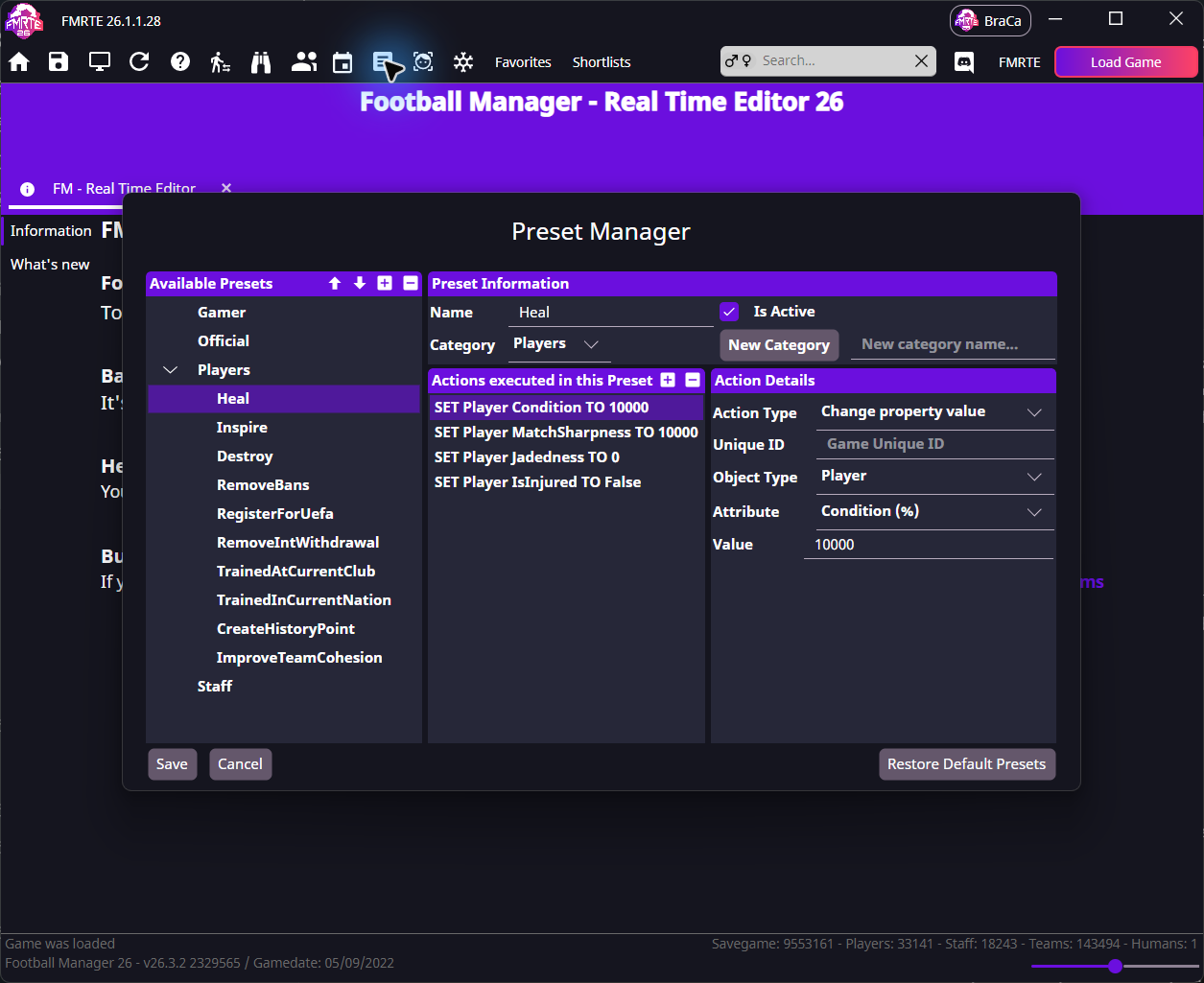
To build and apply one preset, follow Create a condition preset.
Preset settings and values
Select a preset under Available Presets to inspect the Actions executed in this Preset. Keep Is Active selected for a preset you want to use.
| Field | What to choose |
|---|---|
| Action Type | The operation, such as Change property value |
| Object Type | The type of record, such as Player |
| Attribute | The property the action changes |
| Value | An exact value, or a change with a leading + or - |
| Unique ID | Leave empty to use the record you apply the preset to |
Check the attribute's scale before entering a value. Condition (%) uses 0–10,000, so 9500 sets condition to 95%. A relative value of +100 adds one percentage point.
Select Save at the bottom to keep the preset definition. Follow the condition preset example for the full creation and result-checking procedure.
Apply and verify it on one player
Choose your preset on a player, or right-click a player row and open Presets → Players. Reopen the player's information to check the result, then check Football Manager.
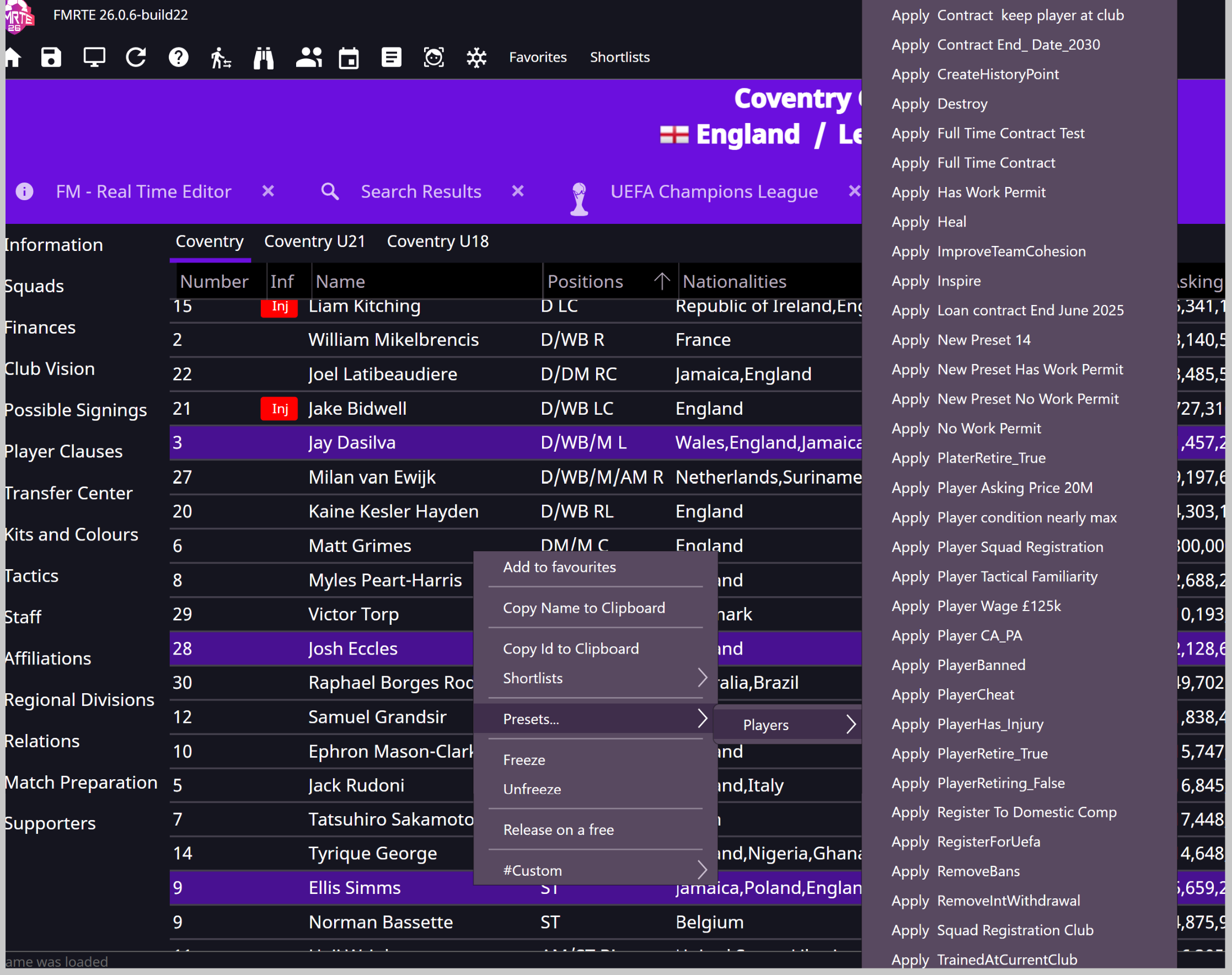
Applying a preset writes its actions to the game. Saving in Preset Manager only saves the preset definition. Inspect every action before applying a shared preset.
What do Minimum and Maximum mean?
For relative numeric changes, Minimum and Maximum limit the result. They do not filter players or choose a random number.
With CA +10, Minimum 1 and Maximum 150:
| Before | After |
|---|---|
| 120 | 130 |
| 145 | 150 |
| 160 | 150 |
Even a value already above the maximum can be lowered. Filter your targets first if needed. To set an exact value, enter 130 without a sign. Keep CA and PA consistent.
Other action types
Actions can also add injuries, change training happiness or staff knowledge, run custom actions, or add competition standing points. Fields change with Action Type. A preset's name alone does not tell you which records it changes.
Find or share the preset file
- Open Settings → General → Advanced → Open Log folder → Open.
- Find or create the Presets subfolder.
- Close FMRTE, copy the shared
.jsonfile there, and reopen the app. - Inspect the preset in Preset Manager before applying it.
Restore Default Presets restores built-in definitions; it does not reverse applied changes.
Apply a preset to a group
Use Mass Edit → Presets → Preset(s) to apply. Check the target count before Apply. See Mass Edit.