Open in
Create a condition preset
Create a preset that sets a player's condition to 95%, then apply it to one player. It sets that exact value, even if their condition was higher.
Before you start
info
You need a loaded savegame and an activated license.
For this preset, 10,000 means 100%, so 95% is 9500. Changing condition alone does not remove injuries or restore match sharpness.
Create the preset
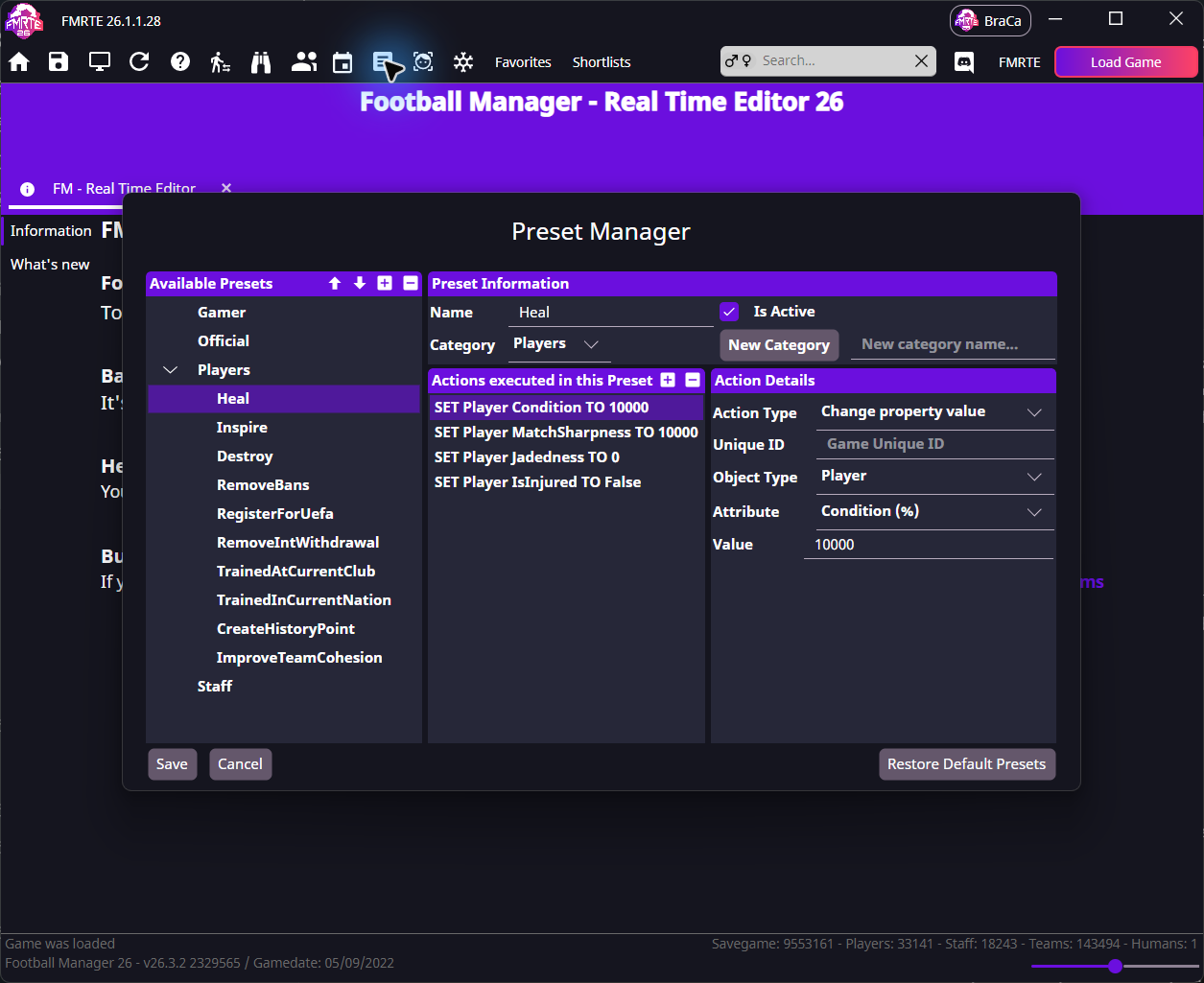
- Open Preset Manager from the toolbar.
- Add a preset under Available Presets.
- Name it Condition 95%.
- Choose the player category and keep Is Active selected.
- Add one action under Actions executed in this Preset.
- Set Action Type to Change property value.
- Set Object Type to Player.
- Set Attribute to Condition (%).
- Set Value to 9500, without a plus or minus sign.
- Leave Unique ID empty so the action uses the player you apply it to.
- Select Save at the bottom of Preset Manager.
Apply it to one player
Saving in Preset Manager saves the preset definition. Applying the preset writes its action to the running game immediately.
- Find the player in a search result or squad list.
- Right-click their row and open Presets → Players.
- Select Condition 95%.
Check the result
- Open the player's Information page in FMRTE.
- Select Reload.
- Check that Match Exercise, the condition field on this page, shows 9500.
- Check the player's condition in Football Manager.
- Save in Football Manager to keep the change.
If it did not work
- The preset is missing: open Preset Manager and check that it is saved, active and in the player category.
- The wrong value changes: check the preset's action, attribute and value before applying it again.
- Condition changes back: follow the saving checks.