Open in
Personal details
Open a player's Information tab to change their name, nationality, birth details and other fields in Personal Details.
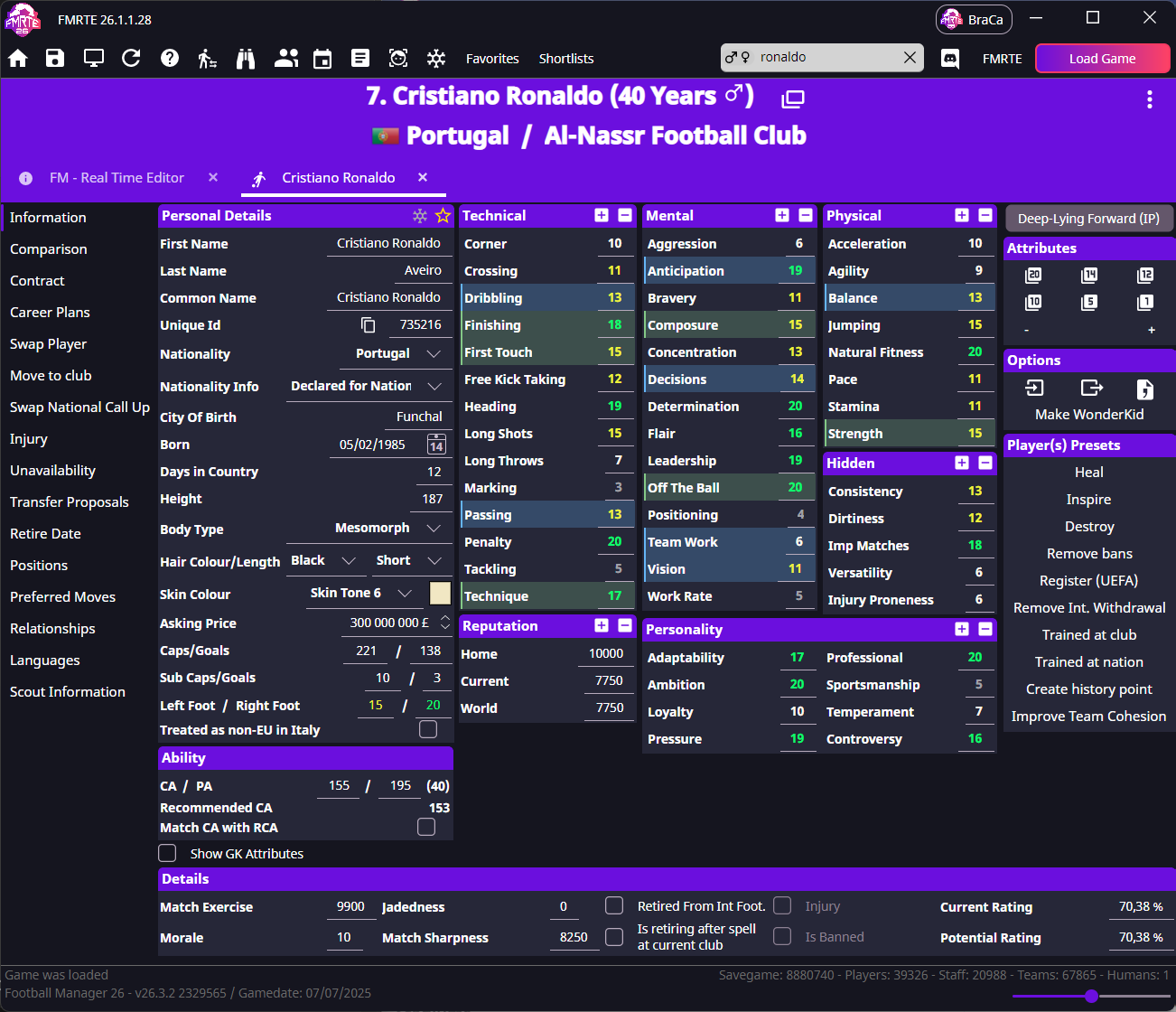
What you can change
| Field | What it contains |
|---|---|
| First Name, Last Name, Common Name | The parts of the player's name. See Change a player's name for the two ways to edit them. |
| Nationality | The player's primary nationality. Add another nationality through Relationships. |
| Nationality Info | The recorded nationality or eligibility status, such as Born in nation or Eligible for nation. |
| City Of Birth | The player's birthplace. Use the search button beside the field to choose a city. |
| Born | The player's date of birth. |
| Height | The player's height. |
| Body Type | The player's body type. |
| Hair Colour/Length, Skin Colour | The player's appearance settings. |
| Asking Price | The asking price, shown in the currency selected in FMRTE. |
| Caps/Goals | Senior international appearances and goals. |
| Sub Caps/Goals | Under-21 international appearances and goals. |
| Left Foot, Right Foot | Ability with each foot, using the 1–20 scale. |
| Treated as non-EU in Italy | The player's non-European Union (non-EU) status for Italy. See Registration and permits. |
Edit a personal detail
- Find the player and open Information.
- Change the field in Personal Details.
- Select Save Changes.
- Check the updated detail in Football Manager.
Use the search button for City Of Birth, the date picker for Born, and the lists for nationality and appearance options.
Change a player's name
You can select a name already in the database or type into First Name, Last Name or Common Name.
Select a name already in the database
- Open the player's Information tab.
- Select the search button beside First Name, Last Name or Common Name.
- Search for the name you want.
- Select the replacement from the results.
- Select Save Changes.
Reopen the player's profile in Football Manager to check the name. The game's display may need time to refresh.
Type a name into the field
Direct editing can be limited by the original name's length. Name text can also be shared by several people.
- Open the player's Information tab.
- Enter the name in First Name, Last Name or Common Name.
- Select Save Changes.
- If a prompt says other people will change too, select No unless you intend to rename them as well.
Shorter names may retain spaces. Repeated saving or adding spaces does not remove the length restriction. You can instead select a name already in the database.
Change the primary nationality
- Open Information.
- Choose the nation in Nationality.
- Review Nationality Info and select the status you intend to set.
- Select Save Changes.
To keep the current nationality and add another, use Other Nationality in Relationships.
Nationality does not automatically grant home-grown status, a work permit or registration. See Registration and permits.